
Git Worktrees: Running Multiple Agents in Parallel
One Repo, Two Agents, Zero Conflicts
I've been working on a ticket marketplace built with WordPress and WooCommerce, and recently I needed to figure out how to run two AI agents working on different features simultaneously. The problem? They both needed access to the same codebase, but couldn't step on each other's toes. That's when I discovered Git Worktrees - and honestly, it changed everything about how I think about parallel development.
The Problem I Was Facing
Here's the thing: I wanted to have two agents working in parallel - one on UI improvements and another on a test suite. With regular Git workflow, I'd need to constantly switch branches, stash changes, and pray nothing broke in the process. Not ideal when you're trying to maximize productivity.
I knew there had to be a better way. After some research, I stumbled upon Git Worktrees.

What Are Git Worktrees, Anyway?
Let me explain it simply: worktrees let you have multiple working directories from a single Git repository. Each directory can have a different branch checked out, and they all share the same Git history. It's like cloning your repo multiple times, but way more efficient because everything stays connected.
The key insight that took me a while to grasp: a worktree is just a directory. You don't "switch" to it with Git commands - you literally cd into it like any folder.
Creating My First Worktree
So I started experimenting. First thing I tried was:
git worktree add ../agent-test-suite staging
And here the bugs started - yay! I got this error:
fatal: 'staging' is already checked out at '/Users/gabep/Documents/Projects/nossoPalco'
This is when it clicked: a branch can only be checked out in one worktree at a time. Makes sense when you think about it - if two directories had the same branch, commits would conflict.
The solution? Create a new branch based on staging:
git worktree add -b agent-test-suite ../agent-test-suite staging
This creates a new branch called agent-test-suite based on staging, and checks it out in a new directory. Perfect!
The Docker Challenge
Right, now I had my worktree set up. But when I tried to access it on localhost:8083, nothing worked. I checked the logs and found:
PHP Fatal error: Failed opening required '/var/www/html/wp-config.php'
Here's what I learned: worktrees only contain files tracked by Git. My wp-config.php was in .gitignore, so it didn't get copied! Same with the uploads folder containing all my event images.
I had to manually copy these files:
cp /path/to/main/wp-config.php ../agent-test-suite/
cp -r /path/to/main/wp-content/uploads ../agent-test-suite/wp-content/
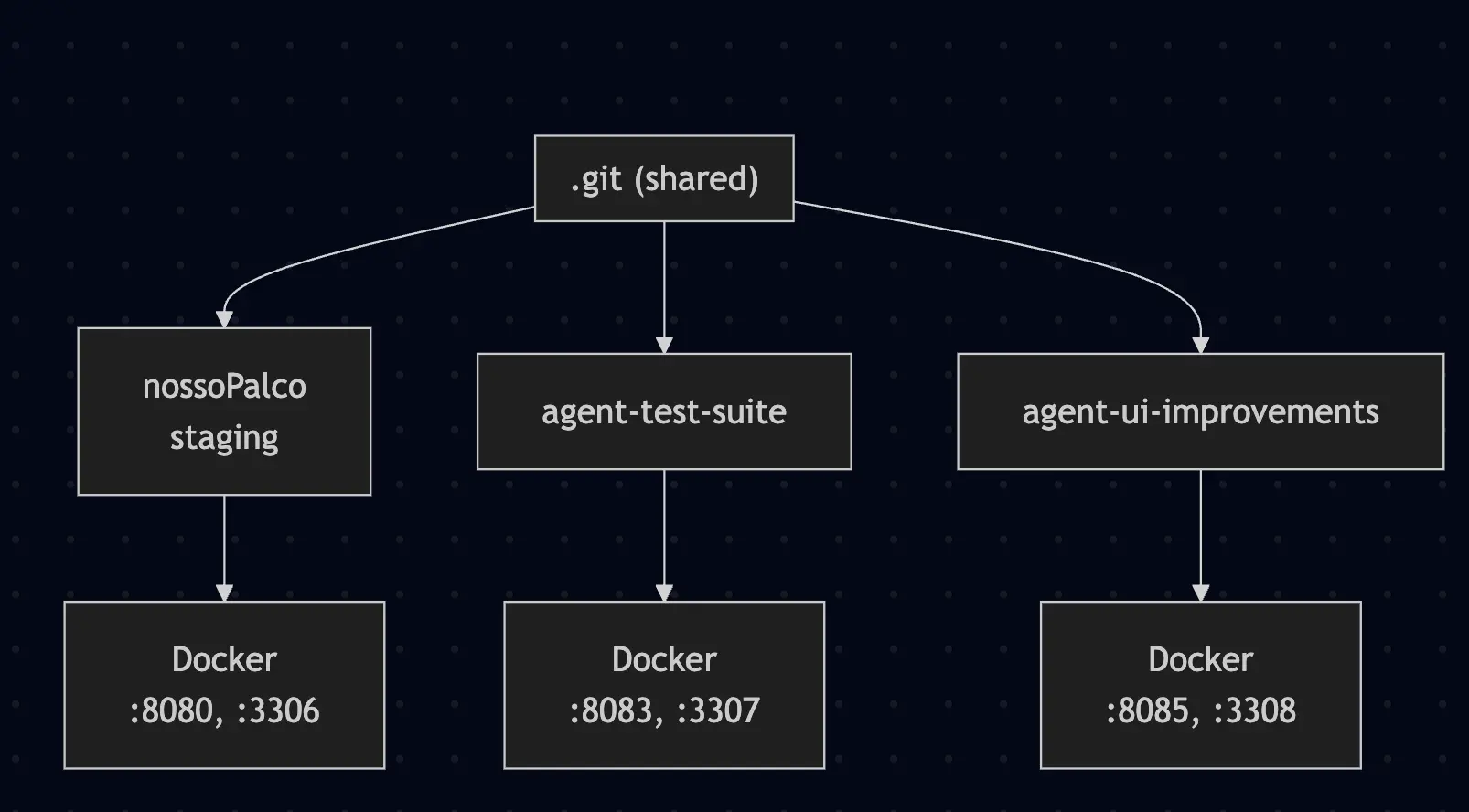
But wait - there's more. Each worktree needs its own Docker containers with unique ports and names. Otherwise, they'll conflict. I spent a good hour figuring this out.
Configuring Docker for Multiple Worktrees
The docker-compose.yml in each worktree needs unique values:
| Resource | Main Project | Worktree 2 |
|---|---|---|
| WordPress | 8080 | 8083 |
| MySQL | 3306 | 3307 |
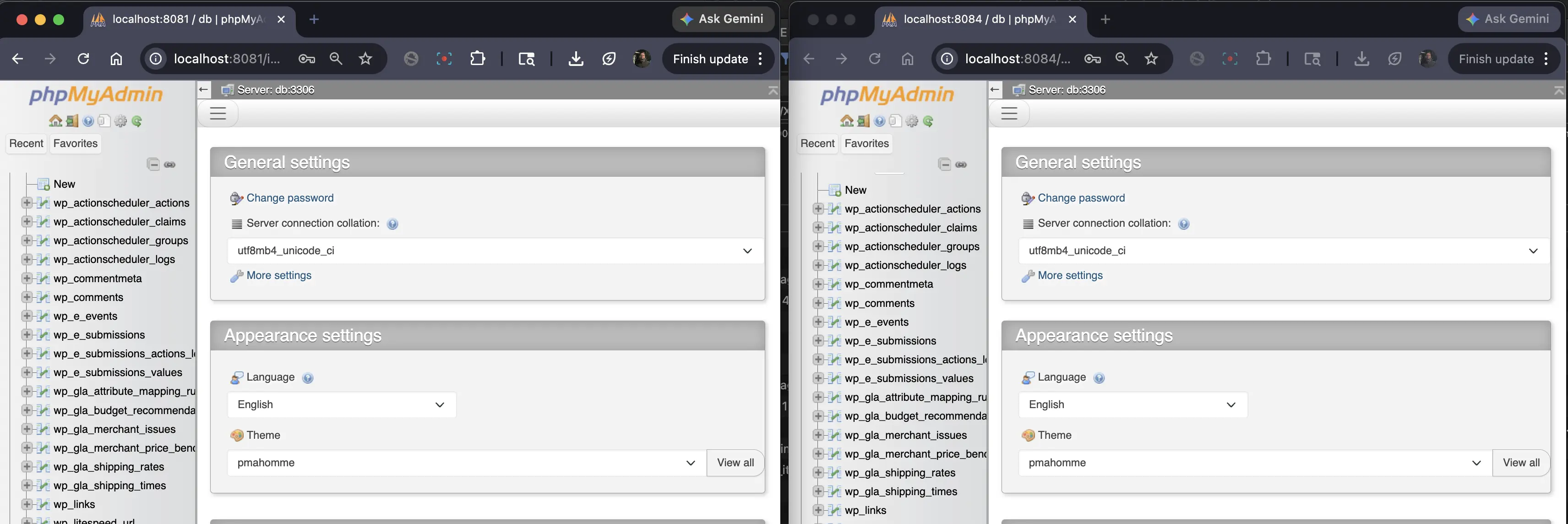
| phpMyAdmin | 8081 | 8084 |
| Mailhog | 8025 | 8027 |
And don't forget - container names, volume names, and network names all need to be unique too. I learned this the hard way when Docker complained about conflicting networks.
The Database Situation
Another thing that tripped me up: each worktree has its own database volume. That means an empty database when you first start it!
I had to export from the main project and import:
# Export from main
docker exec nossopalco-db mysqldump -uroot -proot local > /tmp/dump.sql

# Import to worktree
docker exec -i nossopalco-db-test-suite mysql -uroot -proot local < /tmp/dump.sql
Then update the URLs in the database to match the new port:
docker exec nossopalco-db-test-suite mysql -uroot -proot local -e "
UPDATE wp_options SET option_value = 'http://localhost:8083' WHERE option_name IN ('siteurl', 'home');
"
JWT Token Headaches
And when I thought everything was working, I hit another wall. The homepage carousel wasn't loading any events. Console showed:
{"code":"jwt_auth_bad_iss","message":"The iss do not match with this server"}
The JWT token was generated with the old URL (localhost:8080) and didn't match the new server (localhost:8083). Simple fix once I understood the problem:
docker exec nossopalco-db-test-suite mysql -uroot -proot local -e "
DELETE FROM wp_options WHERE option_name LIKE '%wc_api_token%';
"
Refreshed the page, and the system generated a new token automatically. Events finally appeared!
The Final Setup
After all that troubleshooting, here's what my setup looks like:
/nossoPalco/
├── nossoPalco/              # Main project (port 8080)
└── agent-test-suite/        # Testing worktree (port 8083)
Each one is completely isolated - separate containers, separate databases, separate branches. But they all share the same Git history, so merging changes is seamless.
What I Learned
More often than not, I realize that with hard work and patience, what seems complex becomes manageable. Git Worktrees aren't complicated - they're just directories with branches. The complexity comes from everything around them: Docker configurations, database imports, file permissions.
The key takeaways:
- Worktrees are directories - navigate with
cd, not Git commands - One branch per worktree - can't have the same branch in two places
- Gitignored files don't copy - manually copy
wp-config.php, uploads, etc. - Docker needs unique everything - ports, names, volumes, networks
- Database is separate - export/import and update URLs
- JWT tokens are URL-specific - clear old tokens after URL changes
And the best part? I now have two agents working simultaneously on different features, each with their own isolated environment. When they're done, I just merge the branches. Clean and simple.
